

A cart drawer is a slide-out panel that lets shoppers review their cart without leaving the page — and it converts 45% better than a standard Shopify cart page.


Guilhem Teyssier
Founder & CEO
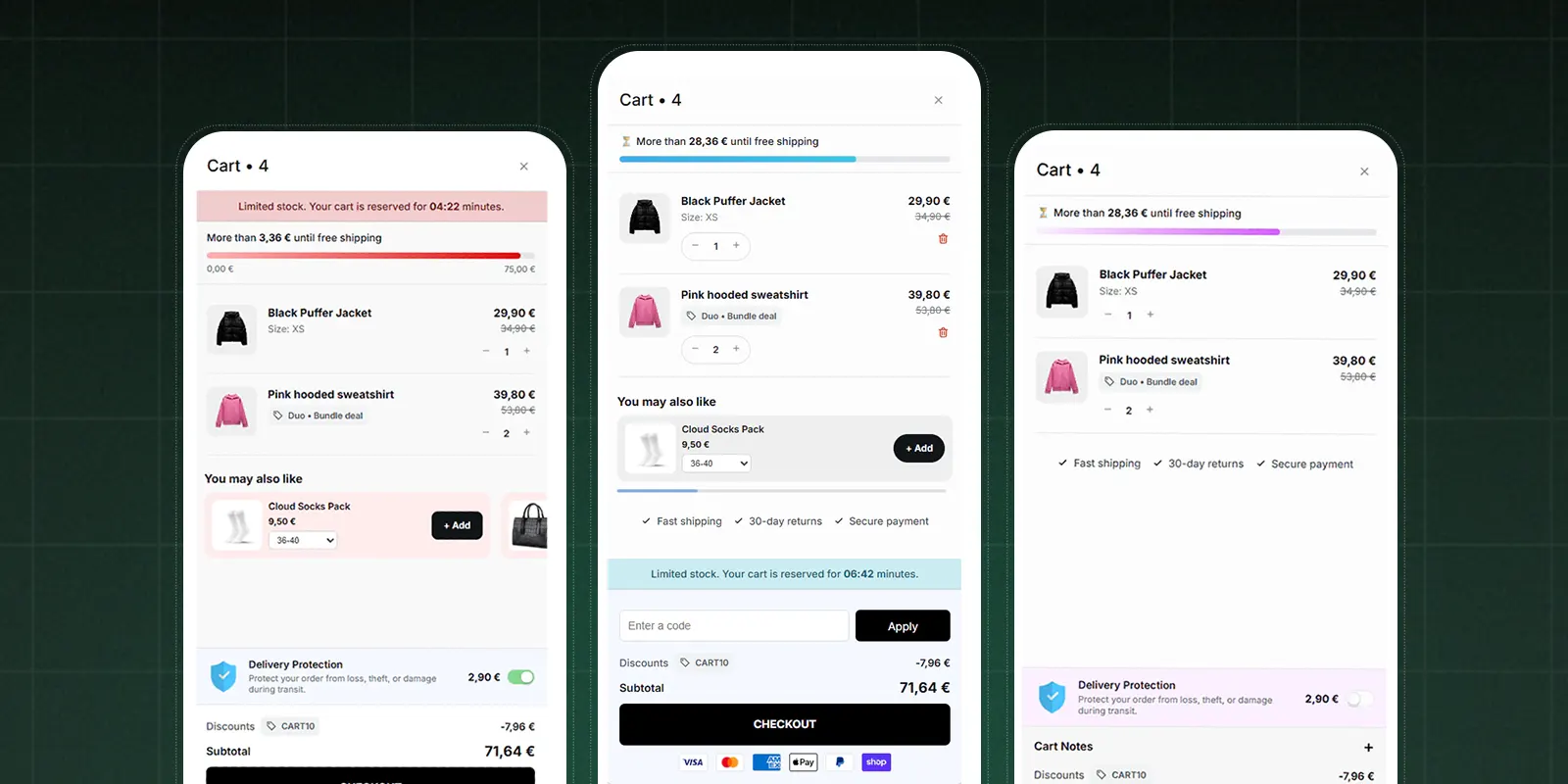
70% of your shoppers will abandon their cart. Not 20%. Not 30%. Seventy percent. And most Shopify stores are making it worse by sending those customers to a separate cart page — an extra step that bleeds traffic before it ever reaches checkout.
A cart drawer fixes this. Here's exactly what it is, how it works, and how to use it to convert more of the traffic you're already paying for.
What Is a Cart Drawer on Shopify?
A cart drawer — also called a slide-out cart or mini cart — is a panel that slides in from the edge of the screen when a customer adds a product to their cart. It overlays the current page without redirecting the shopper anywhere.
The customer sees their item, the cart total, any upsells or promotions you've set up, and a checkout button. Then they can close it and keep browsing. Or check out immediately. Their choice.
That last part is the whole point. Every time a standard cart page loads, you're asking a customer to navigate away from the product they were just looking at. Some come back. Most don't.
Shopify's default behavior sends customers to a dedicated /cart URL. The cart drawer replaces that redirect entirely. The experience feels faster, lighter, and less like being pushed through a funnel.
How a Cart Drawer Works (Technically)
When a shopper clicks "Add to Cart," a JavaScript event fires and triggers the drawer animation. The cart contents update via Shopify's AJAX Cart API — no page reload required. The drawer slides in from the right (or left, depending on your theme) and sits as a fixed overlay on top of the current page.
The underlying page stays visible behind it. Shoppers can close the drawer by clicking the X, pressing Escape, or tapping outside the panel. None of that changes where they are on the page.
This is different from a popup cart, which appears centered and blocks the page entirely. It's also different from a mini cart dropdown, which usually sits near the cart icon and gives you very little space to work with.
The drawer format gives you the most real estate: room for a free shipping progress bar, product upsells, trust badges, and a checkout button — all without pulling the customer out of their shopping context.
Cart Drawer vs. Cart Page: The Conversion Numbers
Most Shopify stores still use a cart page because it shipped with the theme they installed. That's a mistake.
Cart drawers deliver a 3.2x revenue multiplier before checkout. Full cart pages average 2.2x. That's not noise — that's a 45% performance gap driven entirely by how customers interact with their cart.
The math behind it is straightforward. Cart page abandonment consistently sits above 70%. Each redirect is another moment for doubt. Another loading spinner. Another phone notification pulling attention away. Cart drawers remove those moments by keeping customers on the page they were already engaged with.
Mobile makes the gap even wider. Between 70–80% of Shopify traffic comes from mobile devices, but mobile converts at just 1.8% versus desktop's 3.9%. The reason isn't product or pricing — it's friction. Redirects on mobile feel slower and more disruptive than on desktop. A slide-out cart that requires no navigation change fits mobile behavior far better than a full page load.
Stores that switch from a cart page to a drawer report conversion rate lifts of 8–15% in the first 30 days, with no changes to product, pricing, or traffic.
What to Include in Your Cart Drawer
A basic drawer with just a product list and a checkout button is better than a cart page. Not by enough.
Free shipping progress bar — place it at the top. Not buried at the bottom. Shoppers who see exactly how far they are from free shipping respond. Stores that position the bar at the top of the drawer report 10–15% higher average order values compared to those who skip it entirely.
One in-cart upsell. One product recommendation, directly relevant to what's already in the cart. Not three. Not a full carousel. One focused suggestion. A customer buying running shoes? Suggest compression socks or an insole. That's it.
Trust signals near the checkout button. Payment icons (Visa, Mastercard, PayPal, Apple Pay), a "Secure checkout" line, and optionally a money-back guarantee badge. These matter most for first-time visitors arriving from paid ads — which is most of your cold traffic.
Clean quantity and remove controls. Every customer who adds the wrong variant or quantity needs an easy fix inside the drawer. If they can't fix it, they leave. Give them +/− buttons, a visible remove option, and a variant selector if your products use them.
A high-contrast checkout button at the bottom. Always visible without scrolling. This sounds obvious. Yet a significant portion of Shopify themes push the checkout button below the fold when an upsell is present. The checkout button must be the most visually dominant element in the lower half of the drawer.
What to skip: coupon code fields at the top (they send customers away to search for codes), more than one upsell recommendation, and any animation heavier than a simple 200ms slide-in.
3 Ways to Add a Cart Drawer to Shopify
Not every Shopify theme ships with a cart drawer. Even those that do often lack upsells, progress bars, or meaningful customization options.
Option 1: Enable it in your theme settings. Modern themes like Dawn, Refresh, and Sense include a built-in cart drawer. Go to Online Store → Themes → Customize, find the Cart settings, and switch from "Cart page" to "Drawer." Takes two minutes. The trade-off: it's a bare-bones implementation — no upsells, no progress bar, no analytics.
Option 2: Build it with custom code. If you have a developer or know Liquid and JavaScript, you can build a fully custom drawer that does exactly what you want. Full control. The cost is 4–8 hours of development and ongoing maintenance whenever Shopify updates its Cart API.
Option 3: Use a dedicated app. The fastest path to a fully-featured cart drawer with upsells, free shipping bars, trust badges, and analytics included. Apps like ConvertX bundle the cart drawer alongside other conversion widgets — sticky add-to-cart, announcement bars, and in-cart upsells — so you're not managing five separate apps for five separate features.
Method | Setup time | Upsells included | Progress bar | Cost |
Theme settings | 5 minutes | No | No | Free |
Custom code | 4–8 hours | Build yourself | Build yourself | Developer fees |
Dedicated app | 15–30 minutes | Yes | Yes | $20–$35/month |
Cart Drawer Mistakes That Kill Conversions
Most merchants install a cart drawer and stop there. That's a mistake.
Not testing on mobile. Between 70–80% of your traffic is on mobile. If the drawer doesn't open cleanly on a 375px screen — if buttons are too small, if the panel overlaps navigation, if swipe-to-close doesn't register — your mobile conversions will suffer for it. Test on real devices before publishing.
Showing irrelevant upsell products. A cart drawer upsell with an unrelated product is worse than no upsell at all. Irrelevant recommendations signal that your store doesn't understand what the customer is buying. Use product tags or collections to target your recommendations. Relevance beats everything.
Drawer animation lag. If the drawer takes longer than 300ms to open, customers notice. At 500ms, they start clicking elsewhere. Keep the drawer implementation lightweight — avoid loading external scripts or unpreloaded images inside the panel.
Forgetting the discount code field decision. If customers arrive with discount codes (from email flows, influencer campaigns, ads), you need a plan. Either support codes clearly inside the drawer, or remove the field and apply discounts automatically. A visible empty coupon field prompts customers to go hunt for codes they don't have — and a meaningful percentage of them won't return.
What the Best-Performing Cart Drawers Have in Common
The highest-converting drawers share a few non-obvious design choices that most merchants miss.
They open automatically on the first add-to-cart, then update silently afterward. Experienced shoppers building a multi-item cart don't want the drawer interrupting them on every click. Auto-open once, then get out of the way.
They keep product thumbnails large enough to be meaningful — a minimum of 60×60px. Customers make emotional decisions. Seeing the product in the cart reinforces the purchase they just made. Tiny or missing thumbnails weaken that reinforcement at exactly the wrong moment.
They show the total price in two places: next to the line items and again near the checkout button. This isn't redundant — it reduces price shock at checkout, where seeing the full amount for the first time is one of the most common triggers for abandonment.
They include a "Continue shopping" link alongside the close button. An explicit invitation to keep browsing reduces checkout anxiety for customers who aren't quite ready. Counterintuitively, making it easy to leave the drawer increases the number of customers who come back to it.
The best cart drawers don't feel like a checkout funnel. They feel like a natural part of the shopping experience — a sidebar that's always available, never intrusive, and ready when the customer decides they're done browsing.
What to Prioritize If You're Starting from Zero
Enable or install a cart drawer first. If your theme supports it natively, make the switch today. If not, install an app — setup takes 15–30 minutes and the impact is immediate.
Add a free shipping progress bar. Set your threshold 20–30% above your current average order value. Show the gap: "Add $14 more for free shipping." Watch customers fill it.
Configure one focused upsell. Pick your most frequently purchased product combination. Set it as a single recommendation inside the drawer. Relevance matters far more than design at this stage.
Add trust signals near checkout. Payment icons and a "Secure checkout" line take 5 minutes to add and have outsized impact on cold traffic that doesn't yet know your brand.
Test everything on mobile before going live. Add a product from your phone. Interact with the drawer end-to-end. Confirm the checkout button is immediately visible without scrolling.
One step. This week. Measure for two weeks, then move to the next.
Frequently Asked Questions
Does a cart drawer actually improve conversion rate on Shopify?
Yes — and the data is consistent. Cart drawers deliver a 3.2x revenue multiplier before checkout versus 2.2x for standard cart pages. Stores that pair the drawer with a free shipping bar and in-cart upsell see average order value increases of up to 73.8%. The core reason: fewer redirects means fewer moments where customers drift away, and keeping shoppers on the product page they were browsing reduces the psychological friction that drives abandonment.
How do I enable the cart drawer on my Shopify theme?
In your Shopify admin, go to Online Store → Themes → Customize. Click "Cart" in the left settings panel. If your theme supports it, you'll see a "Cart type" dropdown with options for "Cart page," "Drawer," and sometimes "Popup." Select "Drawer" and save. If that dropdown isn't there, your current theme doesn't include a built-in cart drawer — you'll need a third-party app or custom development to add one.
What's the difference between a cart drawer and a mini cart on Shopify?
In practice, these terms are often used interchangeably — but they describe different UX patterns. A cart drawer is a full-height panel that slides in from the side of the screen, giving you the most space for upsells, progress bars, and trust elements. A mini cart is typically a compact dropdown near the cart icon. Cart drawers outperform mini carts in most implementations because the larger canvas gives you more control over the pre-checkout experience.
Frequently Asked Questions
Does a cart drawer actually improve conversion rate on Shopify?
How do I enable the cart drawer on my Shopify theme?
What's the difference between a cart drawer and a mini cart on Shopify?